







01
Where is the binding located?
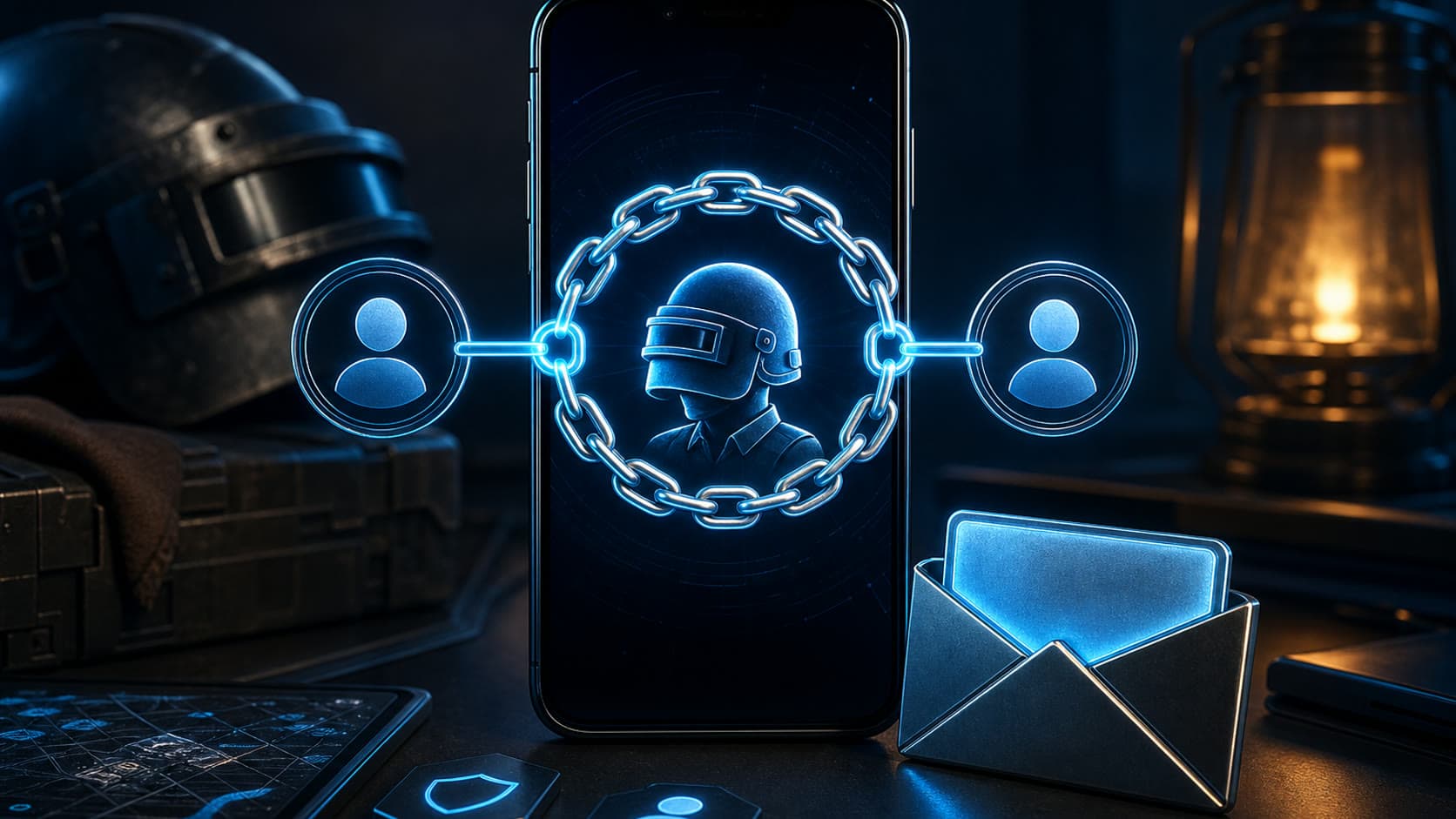
Launch PUBG Mobile under the desired game profile, open Settings and the Account section. In the Linked block, click the add icon and select the suggested method.
The official PUBG Mobile instructions list Facebook, Google and email for Android, and Facebook, Apple and email for iOS. The interface and list may vary depending on the version and region.
02
How not to link someone else's profile
Before confirming, check the name and address of the selected Google, Apple, Facebook or email account. Do not set up on someone else's phone where another account is already open.
After a successful connection, log out only if you are sure that you know the details of the new login method and have access to its confirmations.
Do not share codes from email, Google, Apple or Facebook with anyone - they confirm access to your account.
03
Check before changing device
Save your game ID and take a screenshot of your profile. On your new device, choose the linked login method instead of creating a new guest profile.
If an empty account is opened, do not make a purchase: double-check the selected method and contact official support with your game ID.
04
If you need to relink your account
Do not unlink a valid login method until you are sure that another is available. First, check in Settings → Account → Linked which methods are already connected and whether the game offers to add a new one.
If the desired service is already associated with another game profile or the application does not allow you to change the linking, do not create a new guest account for the sake of purchasing. Save your game ID and contact PUBG Mobile support: available actions depend on your account status.